

Introduction: Raspberry Pi Owncloud (dropbox Clone)
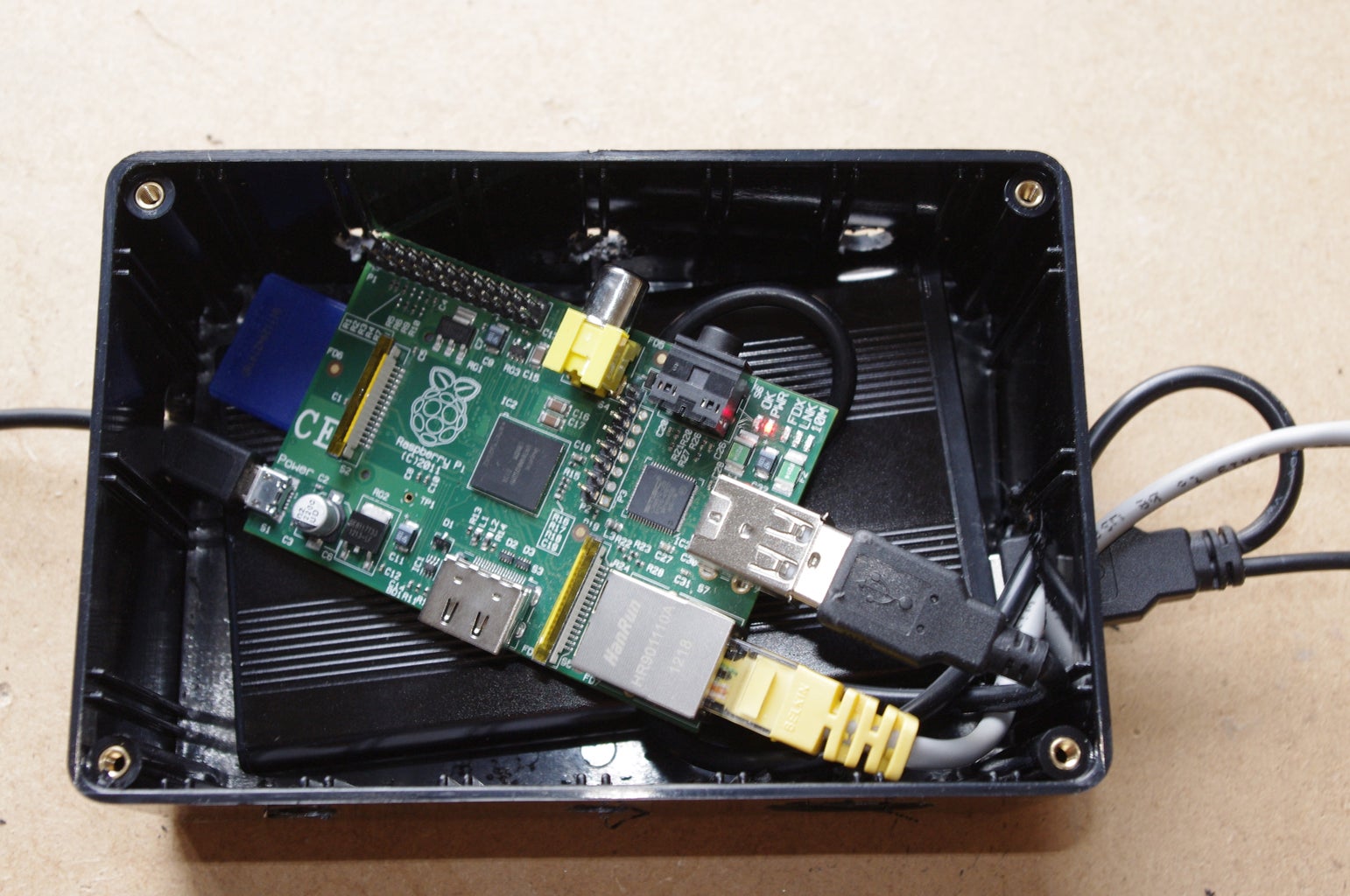




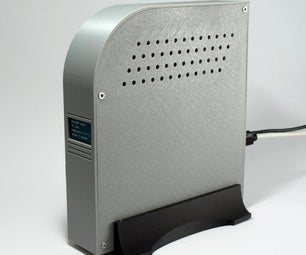
What I'm going to show you is how to build a your own personal dropbox like service using a raspberry pi and some software called OwnCloud. ownCloud gives you freedom and control over your own data. It's a personal cloud which runs on your own server.
If you don't want to go through the steps for downloading and setup up the software you can download the image I have setup from here. While I have done everything I can to check this is working it should be understood that you use at your own risk. If you do download the image you can skip to step 5.
Step 1: What You Need


A Raspberry Pi
An Usb External Harddisk or a USB Drive
An Enclosure for the Raspberry Pi and Hard Disk
Wireless network card (optional)
Step 2: Setting Up the Network Download the Software

So first off we need to give the Pi a fix IP address we do this by editting the network interfaces file
$ sudo nano /etc/network/interfaces
Once open we need to make the file look like this (your IP address might be different)
auto eth0
iface eth0 inet static
address 192.168.1.118
gateway 192.168.1.1
netmask 255.255.255.0
network 192.168.1.0
broadcast 192.168.1.255
The file then needs to be saved by pressing ctrl o and ctrl x to exit
once exited the networking need to be restarted
$ sudo /etc/init.d/networking restart
After that is done we need to update the Pi and download the software. This will take a little while to complete
$ sudo apt-get update
We are going to install Apache with SSL, PHP5, PHP APC which will load pages faster
$ sudo apt-get install apache2 php5 php5-json php5-gd php5-sqlite curl libcurl3 libcurl4-openssl-dev php5-curl php5-gd php5-cgi php-pear php5-dev build-essential libpcre3-dev php5 libapache2-mod-php5 php-apc gparted
Step 3: Configuor Php & Apache


Now we have download the software we need to configor it.
First off we need to install PHP apc
$ sudo pecl install apc
After that is done we need to create the apc.ini
$ sudo nano /etc/php5/cgi/conf.d/apc.ini
In to that file we need to add the following
extension=apc.so
apc.enabled=1
apc.shm_size=30
Once added the file needs saving
Next up we have to change the PHP.ini to change the max upload file so we can add large file and add the APC externsion to PHP
$ sudo nano /etc/php5/apache2/php.ini
In this file we need to find upload_max_filesize and then change the value to 1024M which will allow files of upto 1GB to be uploaded
The we need to find post_max_size and then chaged the value to 1200m which will allow files to upto 1 gb to be uploaded
We need to find externsion= section and add in the extension=apc.so
After we have done that save and exit
next up we need to config apache and enable SSL
$ sudo nano /etc/apache2/sites-enabled/000-default
inside the file we need to change Allow over ride to All from none
Next up we need to setup SSL
$ sudo a2enmod rewrite
$ sudo a2enmod headers
After the follow command you will be asked to provide information
sudo openssl genrsa -des3 -out server.key 1024; sudo openssl rsa -in server.key -out server.key.insecure;sudo openssl req -new -key server.key -out server.csr;sudo openssl x509 -req -days 365 -in server.csr -signkey server.key -out server.crt;sudo cp server.crt /etc/ssl/certs;sudo cp server.key /etc/ssl/private;sudo a2enmod ssl;sudo a2ensite default-ssl
Once all that is done the apache need restarting
$ sudo service apache2 restart
Step 4: Download and Install Own Cloud

Now we have Apache and PHP setup we need to download own cloud
$ wget http://mirrors.owncloud.org/releases/owncloud-4.5.1.tar.bz2
once download it needs unziping
$ sudo tar -xjf owncloud-4.5.1.tar.bz2
And then copying in to the web root
$ sudo cp -r owncloud /var/www
After it's been copied we need to give the webserver permission to access the owncloud directory
$ sudo chown -R www-data:www-data /var/www/owncloud/
We also need to edit the .htaccess file to change the max upload file these values need to changed to the same values as you set in you php.ini
$ sudo nano /var/www/owncloud/.htaccess
Step 5: Setup Own Cloud


The easy way to setup the external drive is to use gparted on the Pi
$ startx
and the from inside the GUI open a ternmail and type
$ sudo gprarted
from here you can partion and format the drive
Once done give the web-server permission
$ sudo chown -R www-data:www-data /media/owncloud
All that needs to be done now is to setup owncloud
in a web browser type in https://IPADDRESS/owncloud
Choose a user name and password by typing then in to the user name and password box
click advanced and changed the data location to the place of your external drive in my case it's /media/owncloud
The click finish and you are done.
You should now be able to upload files. To play video files you'll need to enable the video player app.
To setup external access to your device I would suggest using DyDns or Noip.
Step 6: Placing It in the Encloser

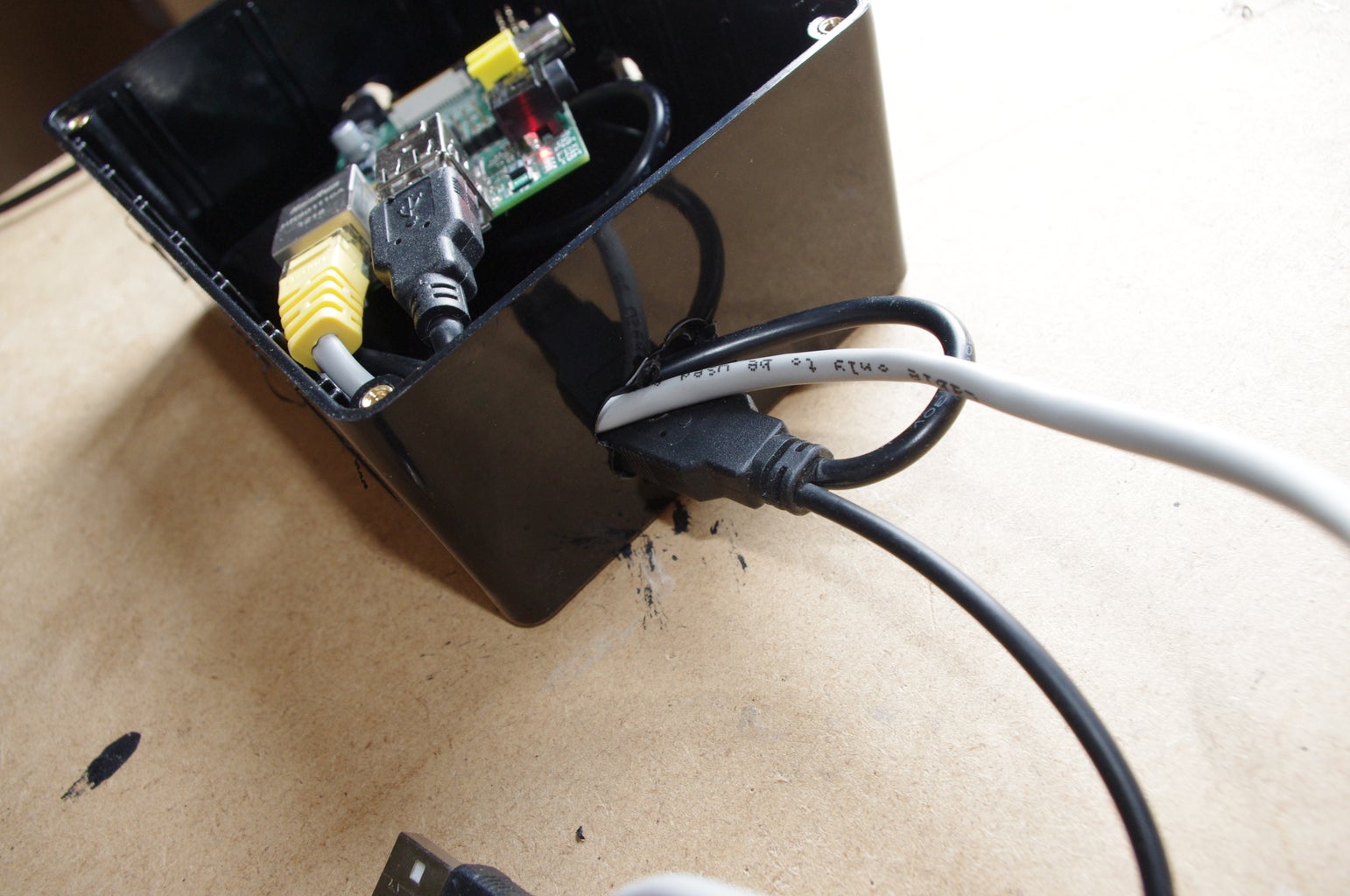


Now the software is setup the Pi just needs placing in to the box. I would drill some hole in the box to allow a little air flow.
And that's it done.